

NodeKit Quick Start
Get up and running with NodeKit in minutes. This guide will walk you through installing NodeKit and setting up your first Algorand node, including generating participation keys for an account and registering them online, including enrolling in staking rewards.
NodeKit can help you with:
- Installing and configuring an Algorand node
- Syncing your node with the latest state of the network
- Managing consensus participation keys
- Monitoring your node and the network
Before You Begin
Section titled “Before You Begin”You need:
- A machine that meets the hardware requirements for a validator node: 8 vCPU, 16 GB RAM and 100 GB NVMe storage.
sudoaccess. NodeKit installsalgodthrough your system package manager.- On macOS, Homebrew. NodeKit installs
algodwith it and stops withbrew not foundif it is missing. - An Algorand account with enough ALGO to cover the 2 ALGO key registration fee. Accounts holding between 30,000 and 70,000,000 ALGO earn rewards for the blocks they propose.
By default, NodeKit registers your account as eligible for staking rewards, which is what the 2 ALGO fee pays for. If the account is already eligible, NodeKit skips the fee. If you don’t want rewards eligibility, run NodeKit with the -n flag and it registers the key without the fee. The installer and bootstrap open the terminal user interface (TUI) without this flag, so to opt out, quit that TUI with q and start it again with ./nodekit -n before you press r to register the key.
Installing NodeKit
Section titled “Installing NodeKit”To get started with NodeKit, copy-paste this command in your terminal:
wget -qO- https://nodekit.run/install.sh | bashcurl -fsSL https://nodekit.run/install.sh | bashTroubleshooting: Command ‘bash’ not found
Some versions of Mac OS may not include the required bash executable that runs the installer.
If you get an error about bash not being available, please install bash on your system manually.
For Mac OS, a popular way to do this is to install Homebrew and then install bash using:
brew install bashThis will detect your operating system and download the appropriate NodeKit executable to your local directory.
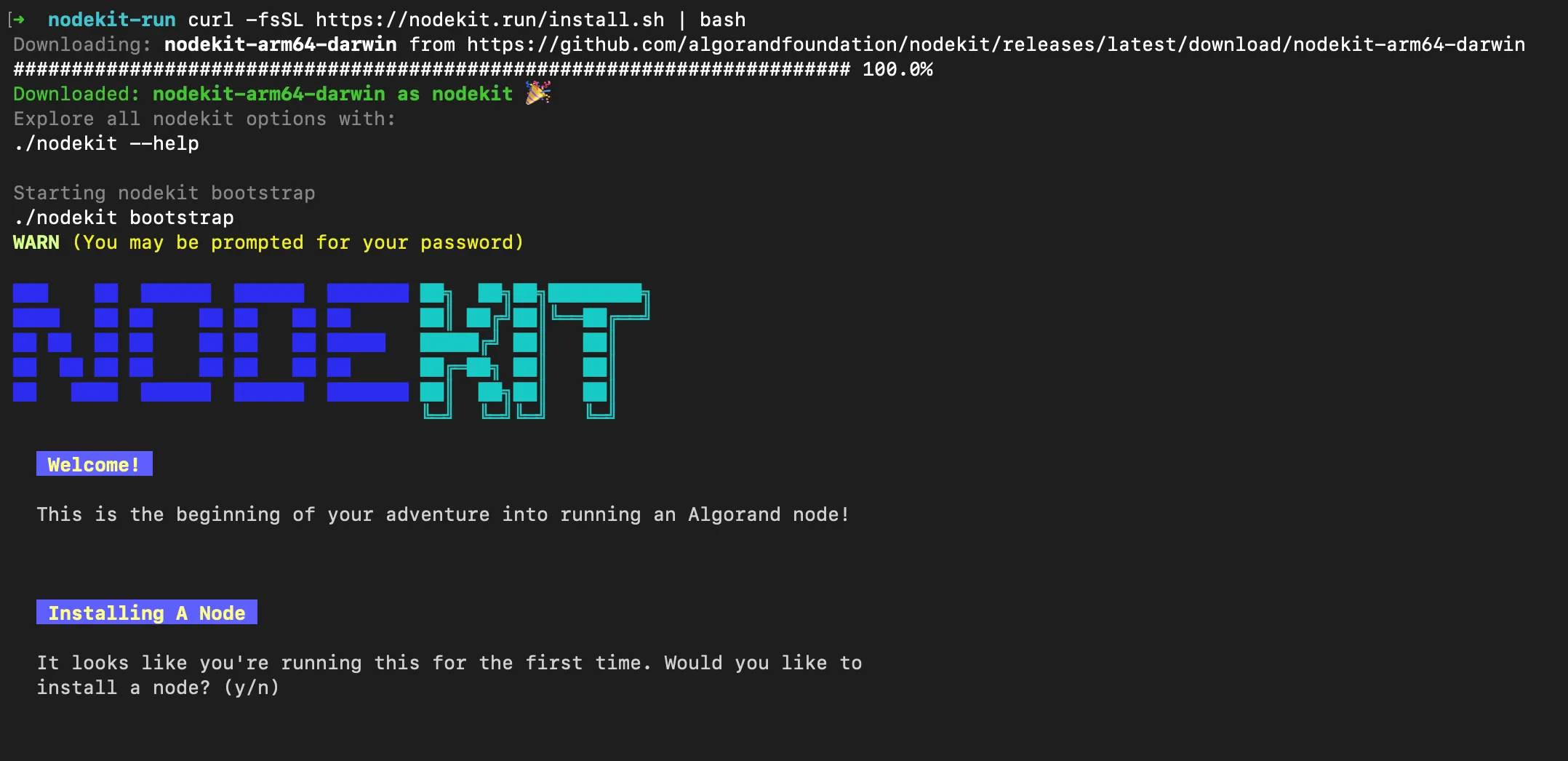
It will then immediately start the bootstrap process to get your Algorand node up and running:
Bootstrapping the Algorand Node
Section titled “Bootstrapping the Algorand Node”How to Start the Process
Section titled “How to Start the Process”The bootstrap process is automatically started after following the installation instructions above, but it can also be triggered manually by running this command:
./nodekit bootstrapPrompts: Installation and Fast-Catchup
Section titled “Prompts: Installation and Fast-Catchup”nodekit bootstrap will check to see if there is a node already installed.
If it finds a node that is already synced, it opens the TUI straight away. Skip ahead to Generating Participation Keys. If the node isn’t synced yet, it only asks the fast-catchup question. bootstrap only works with the default data directory; for a node elsewhere, open the TUI with ./nodekit -d <path> instead.
If there is none, it will ask if you want to start a node installation:
Installing A Node
It looks like you're running this for the first time. Would you like to install a node? (y/n)
It will then ask if you want to perform a “fast-catchup” with the network:
Regular sync with the network usually takes multiple days to weeks. You can optionally perform fast-catchup to sync in 30-60 minutes instead.
Would you like to preform a fast-catchup after installation? (y/n)
Fast-catchup saves a lot of time, so we recommend responding Yes.
Assuming you have responded “Yes” to the node install prompt, you will now be prompted for your user password:
WARN (You may be prompted for your password)INFO Installing Algod on LinuxINFO Installing with apt-get[sudo] password for user:Why is the installer asking for my password?
The installer will ask for your user password during the node installation process.
This is required by your operating system in order to install new software.
Installation
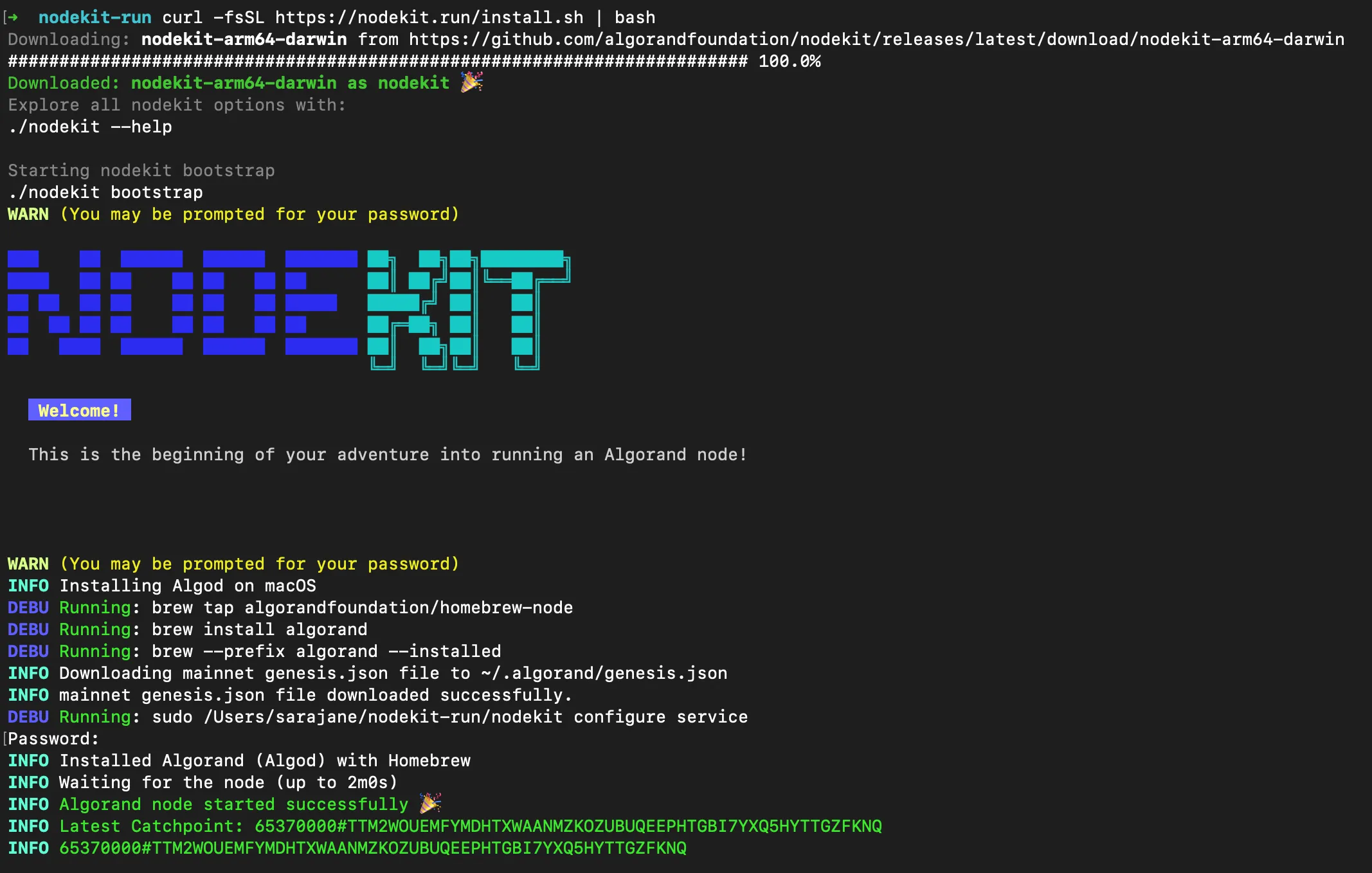
Section titled “Installation”After you enter your password, you can now sit back and wait until your Algorand node is installed and syncs with the network.
The installation phase should only take a few minutes. Your terminal will look like this during the installation phase:
Fast Catchup
Section titled “Fast Catchup”After installation is complete, NodeKit will automatically start the NodeKit user interface.
When the TUI opens you’ll see a NodeKit Information popup about peer-to-peer (P2P) hybrid mode. It appears on every launch until you press d to stop it, or until you enable hybrid mode. Press esc, enter or p to close it, and p to open it again. Enabling hybrid mode is optional. See P2P configuration.
This will display the progress of catching up to the latest state of the Algorand network:
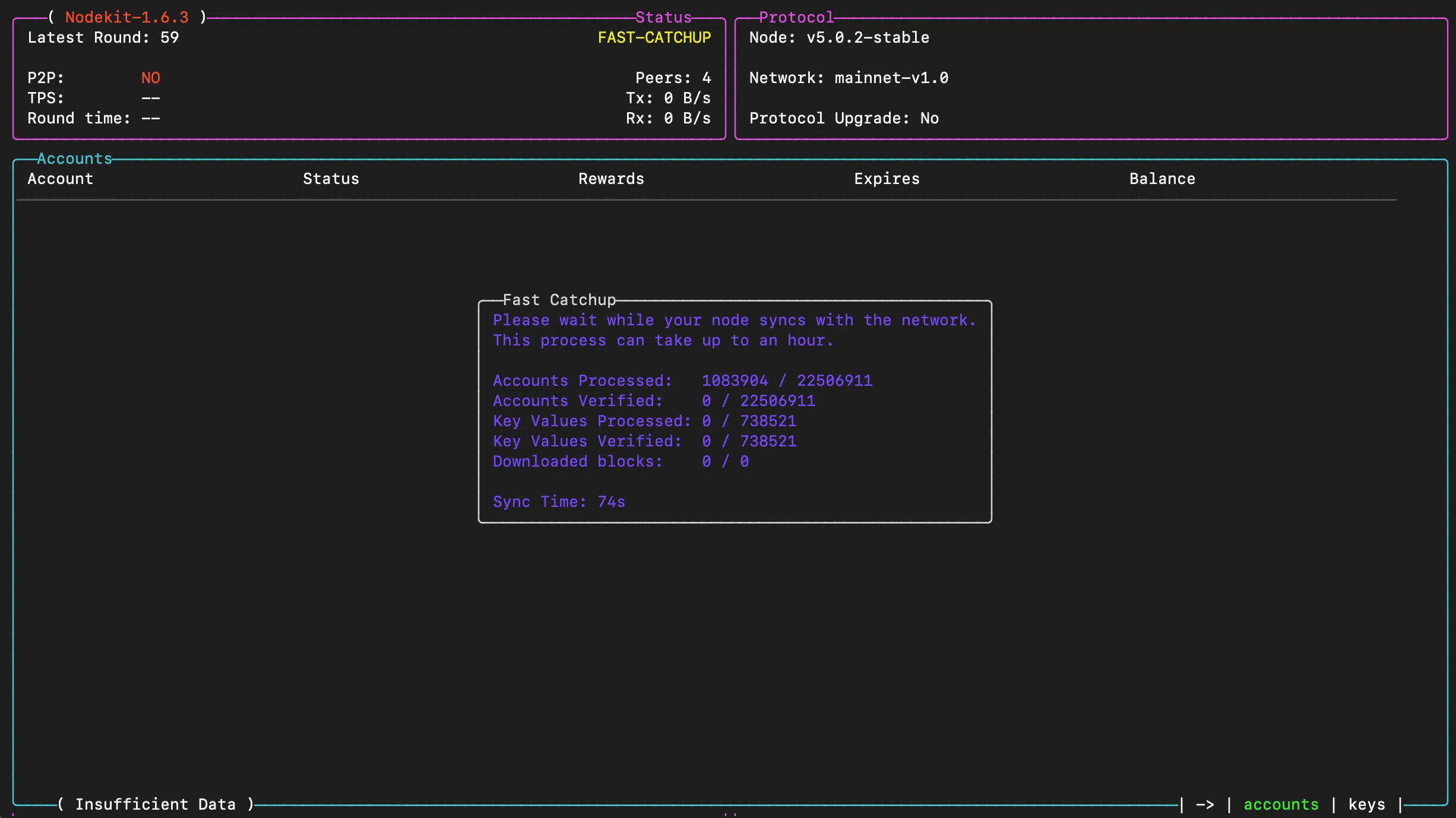
This process usually takes between 30-60 minutes, depending on your hardware and network connection.
The colored status label at the top of the screen tells you where the node is:
| Status | Meaning |
|---|---|
FAST-CATCHUP | Downloading a recent snapshot of the ledger. Usually 30–60 minutes. |
SYNCING | Catching up the remaining rounds from the snapshot to the live network. A few minutes. |
RUNNING | Fully synced and following the network in real time. |
When fast-catchup is done, the Fast Catchup status information disappears and the label moves through SYNCING to a green RUNNING.

Troubleshooting: Fast-catchup
If the fast-catchup process does not complete within 1-2 hours, check the following:
Your Hardware Meets the Requirements
Section titled “Your Hardware Meets the Requirements”Check that your node meets the hardware requirements for a validator node.
Nodekit is in FAST-CATCHUP state
Section titled “Nodekit is in FAST-CATCHUP state”The colored status at the top of Nodekit should be in a yellow FAST-CATCHUP state:

If not, exit nodekit with q and run ./nodekit catchup to start catching up. Then run ./nodekit again to enter the user interface.
After fast-catchup completes successfully, it is normal for a node to be in a SYNCING state for a few minutes:

During this the Latest Round number should be increasing rapidly.
If the Latest Round stops increasing for several minutes, restart fast-catchup as described above.
Generating Participation Keys
Section titled “Generating Participation Keys”If it is not running already, start NodeKit with this command:
./nodekitAfter your node has fully synced with the network, you will see a green RUNNING label at the top:
You will only be able to generate participation keys after your node is in a RUNNING state
Generate Participation Keys
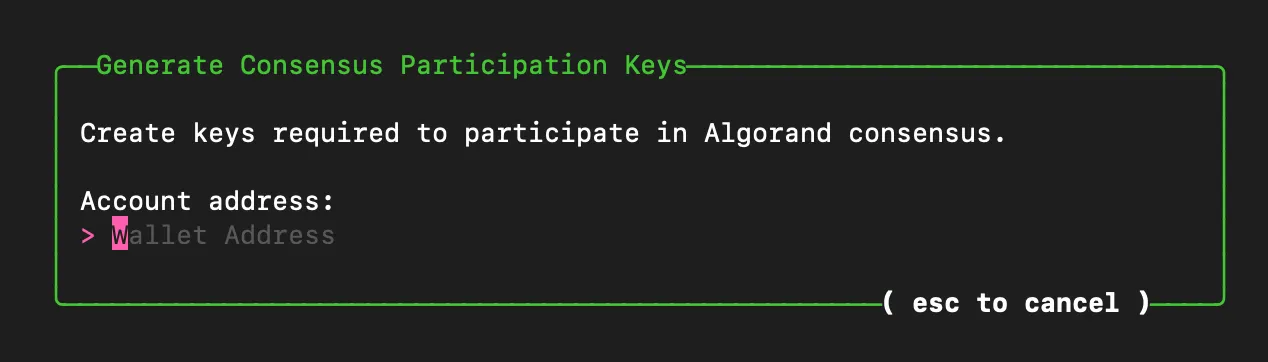
Section titled “Generate Participation Keys”Press the g key to start generating participation keys.
NodeKit will ask the account address that will be participating in consensus. Enter your account address and press enter.
Select Participation Key Duration
Section titled “Select Participation Key Duration”NodeKit asks how long the keys should be valid for. The default is 30 days; press enter to accept it or type a different number.
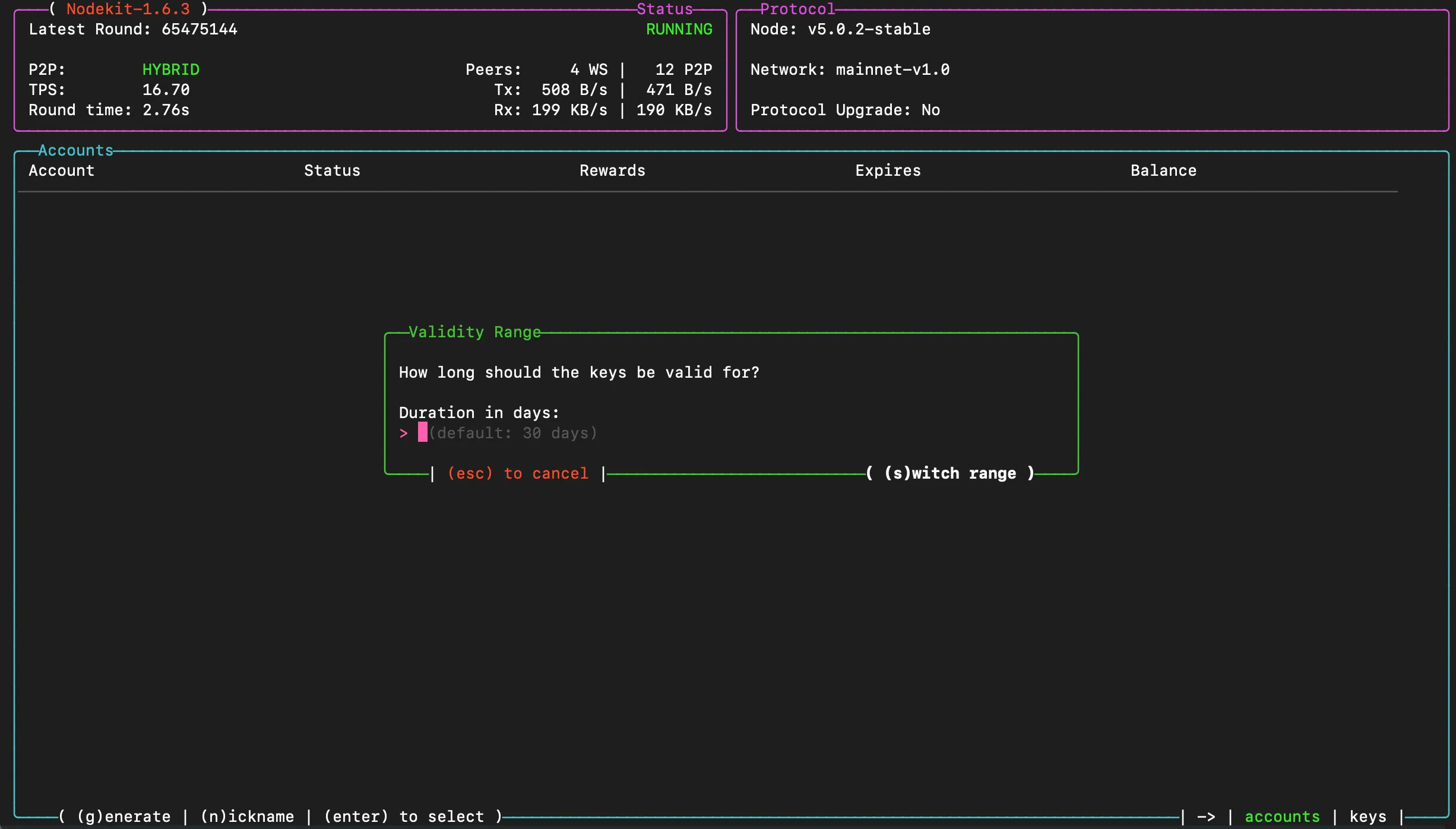
Press s to switch the unit between days, months and rounds.
The longer your duration, the longer the participation key generation step will take to complete.
We recommend a value between 30 and 90 days.
Key Generation
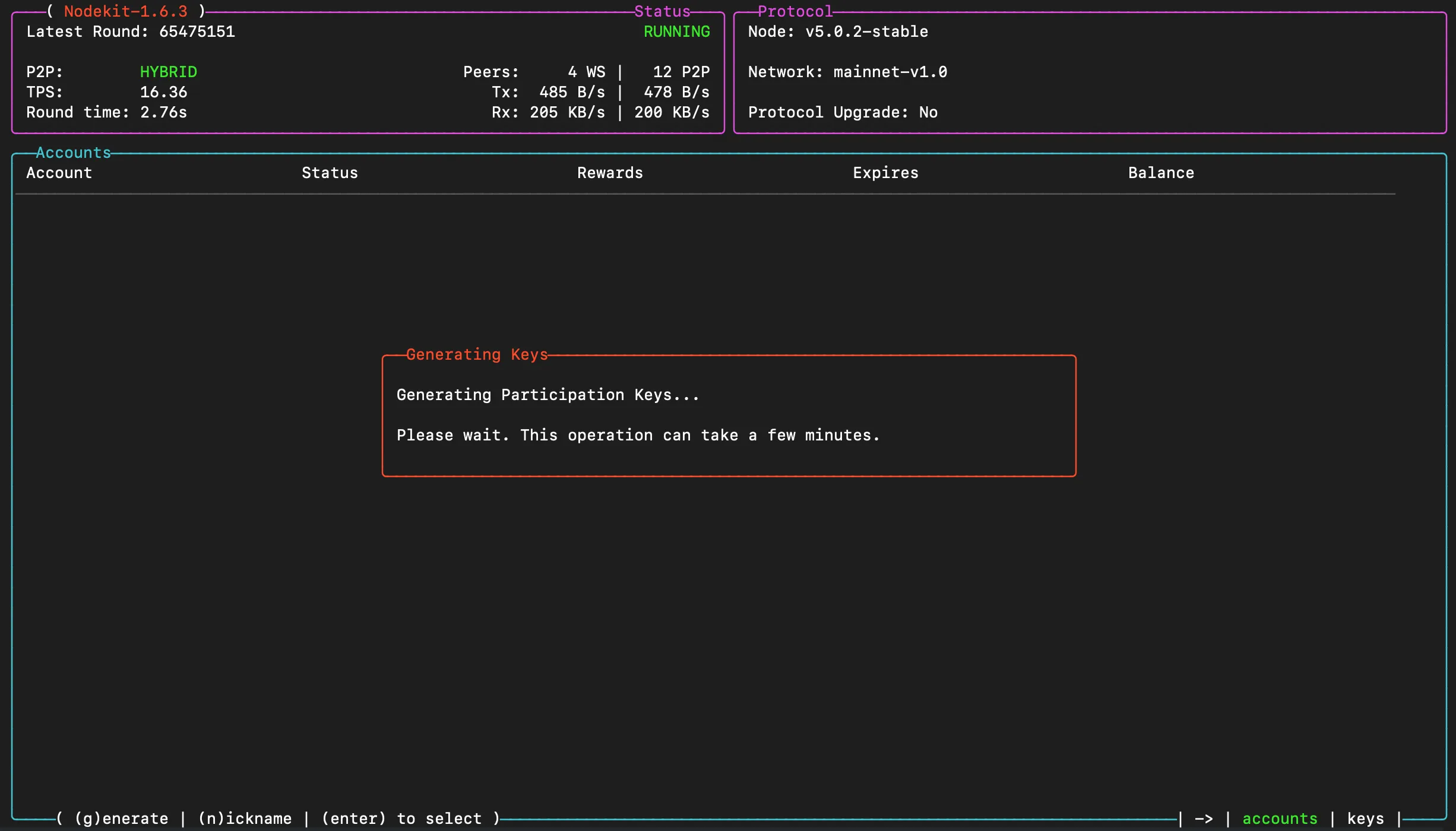
Section titled “Key Generation”After you have selected your key duration, nodekit will instruct your node to generate participation keys.
The time required for this step will depend on your participation key duration. As an indicative wait time, a 30-day participation key should take between 4-6 minutes to generate.
Troubleshooting: Failed to get participation keys
Occasionally, Nodekit may fall out of sync with the Algorand node while waiting for the participation keys to be generated. In this case this error message will be shown:
failed to get participation keys
You can:
- wait for the participation keys to appear in the Accounts list
- try to generate a participation key again - If the key generation process is still running on the node, you will see a
participation key generation already in progresserror
When your participation keys are ready, nodekit will display the key information as shown below.
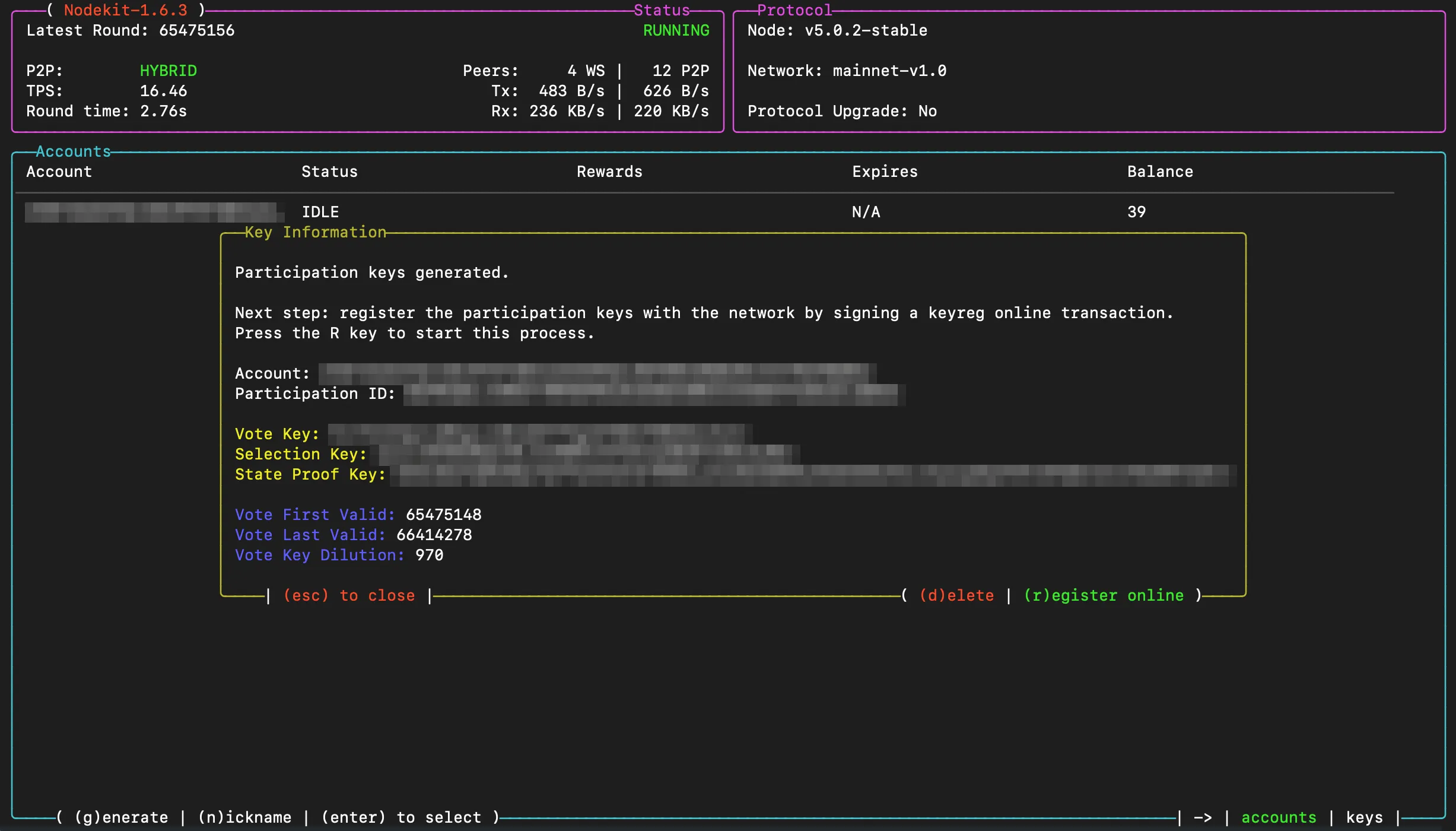
You are now one step away from participating in Algorand consensus! The next step is to register your keys online.
Registering Your Keys Online
Section titled “Registering Your Keys Online”After generating a participation key, press r to register it on the Algorand network. Registration costs 2 ALGO unless you launched NodeKit with -n or the account is already rewards-eligible. See Before You Begin.
You can also start this flow by pressing r on the key information screen shown below.
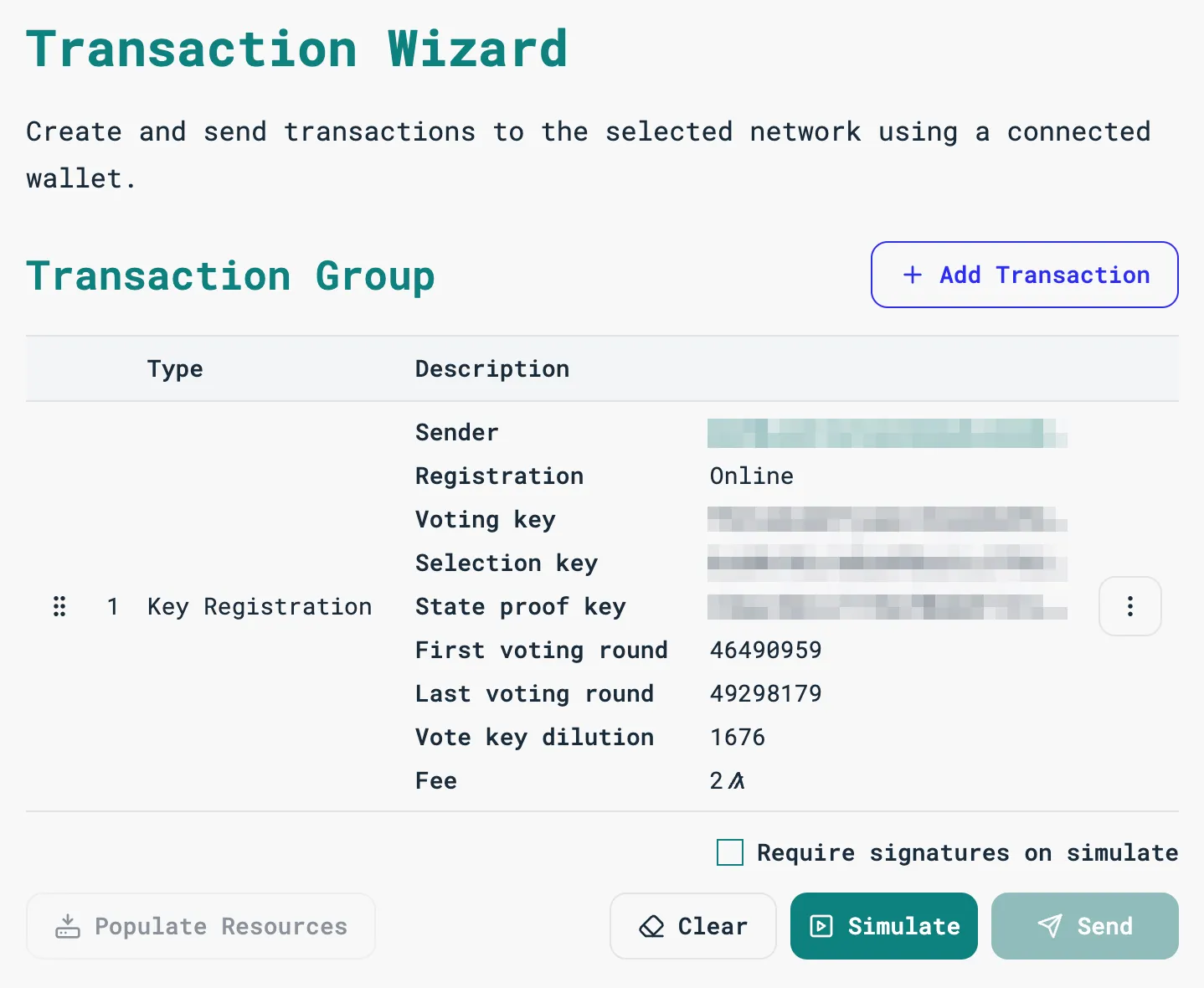
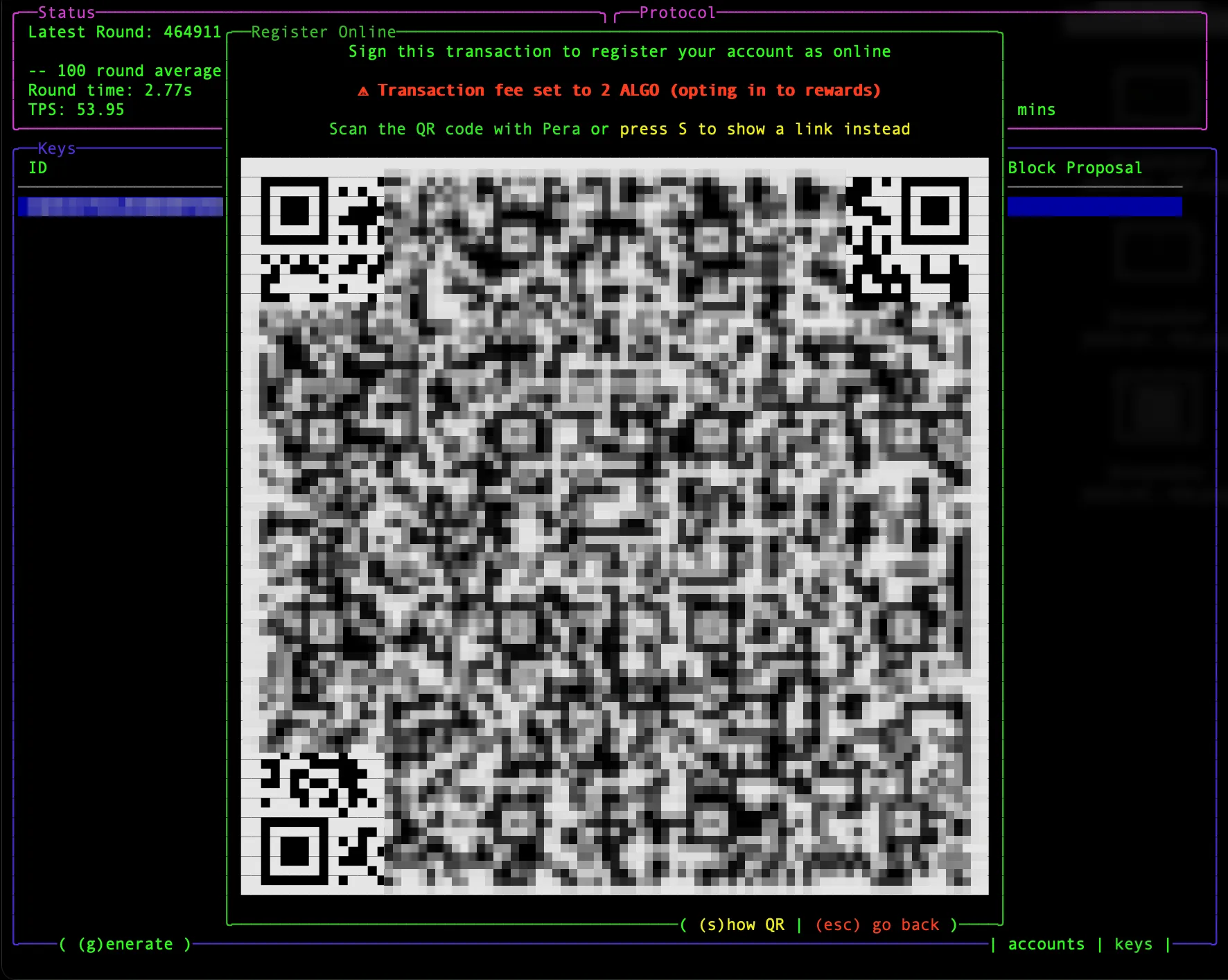
After you press r, NodeKit shows a short link to the key registration transaction. The note above the link tells you the fee, Transaction fee set to 2 ALGO (opting in to rewards), unless you launched with -n or the account is already eligible.
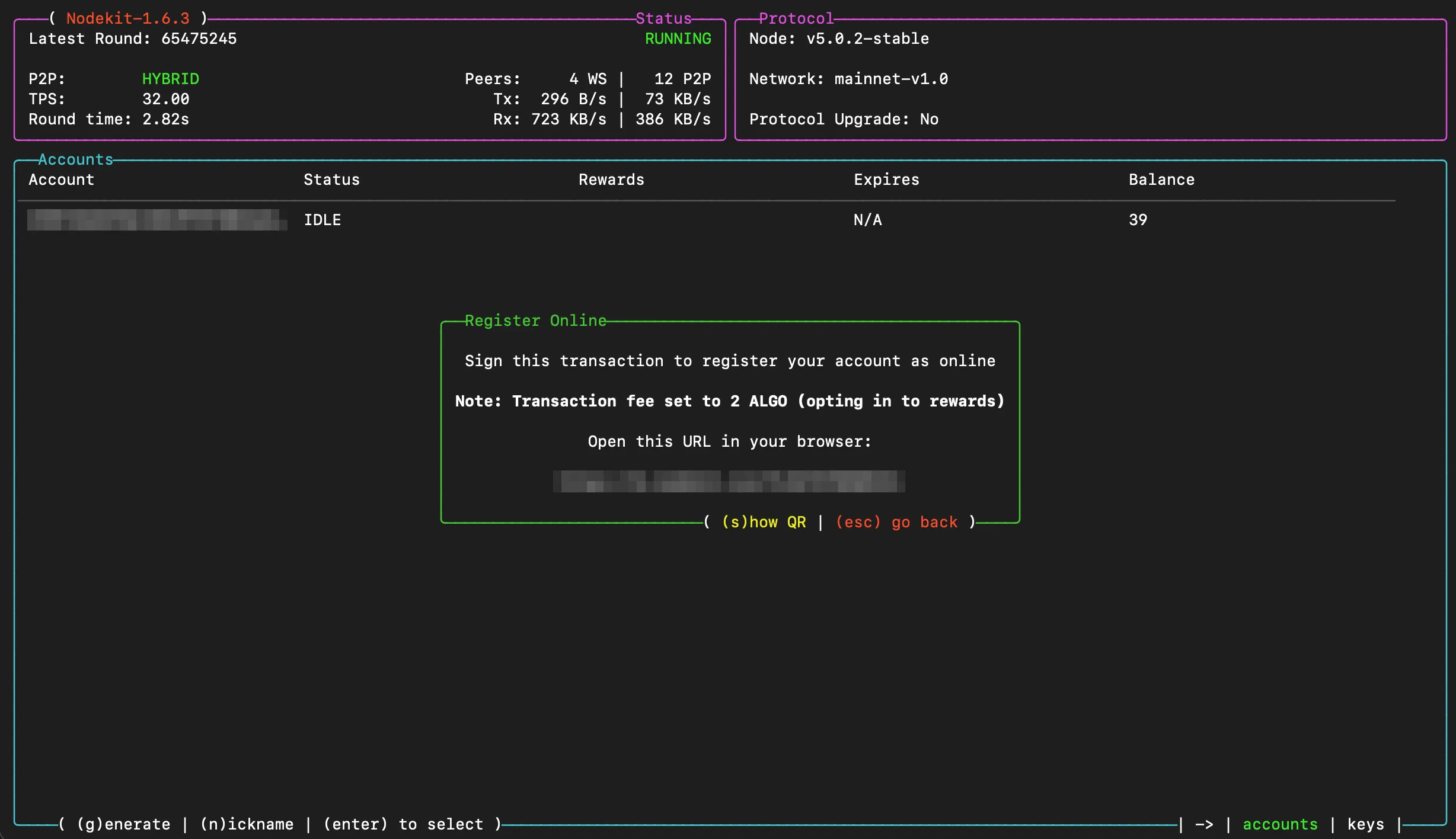
On most terminals, you can hold down ctrl or cmd and click the link to open it in your default browser. If this does not work, copy the link and paste it into your browser. You will be taken to the Lora Transaction Wizard, where you should see the key information pre-filled:
Alternatively, you can press s when the link is presented to show a QR code that contains the key registration transaction that can be scanned to open the transaction in Pera wallet ready to be signed and sent.
After scanning with Pera, you will see the transaction details in your wallet.
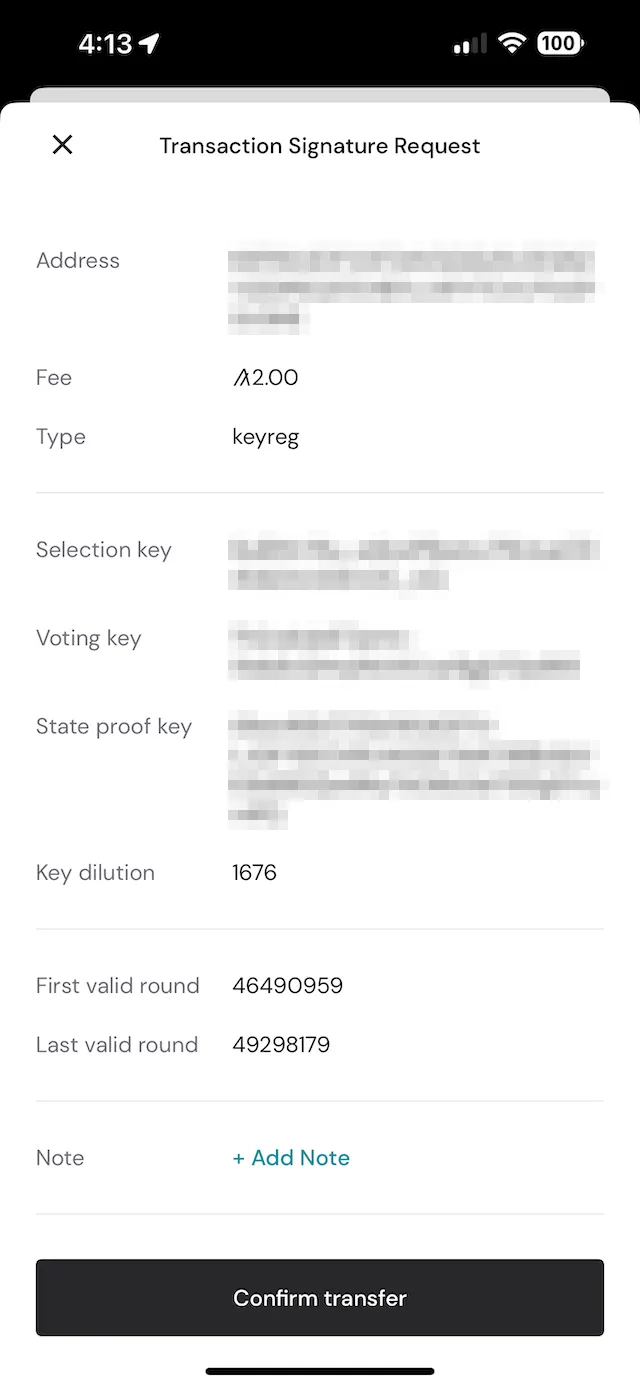
Sign the transaction.
The transaction will be submitted to the network. If it is accepted, you will see a visual confirmation in Lora similar to the one displayed below:
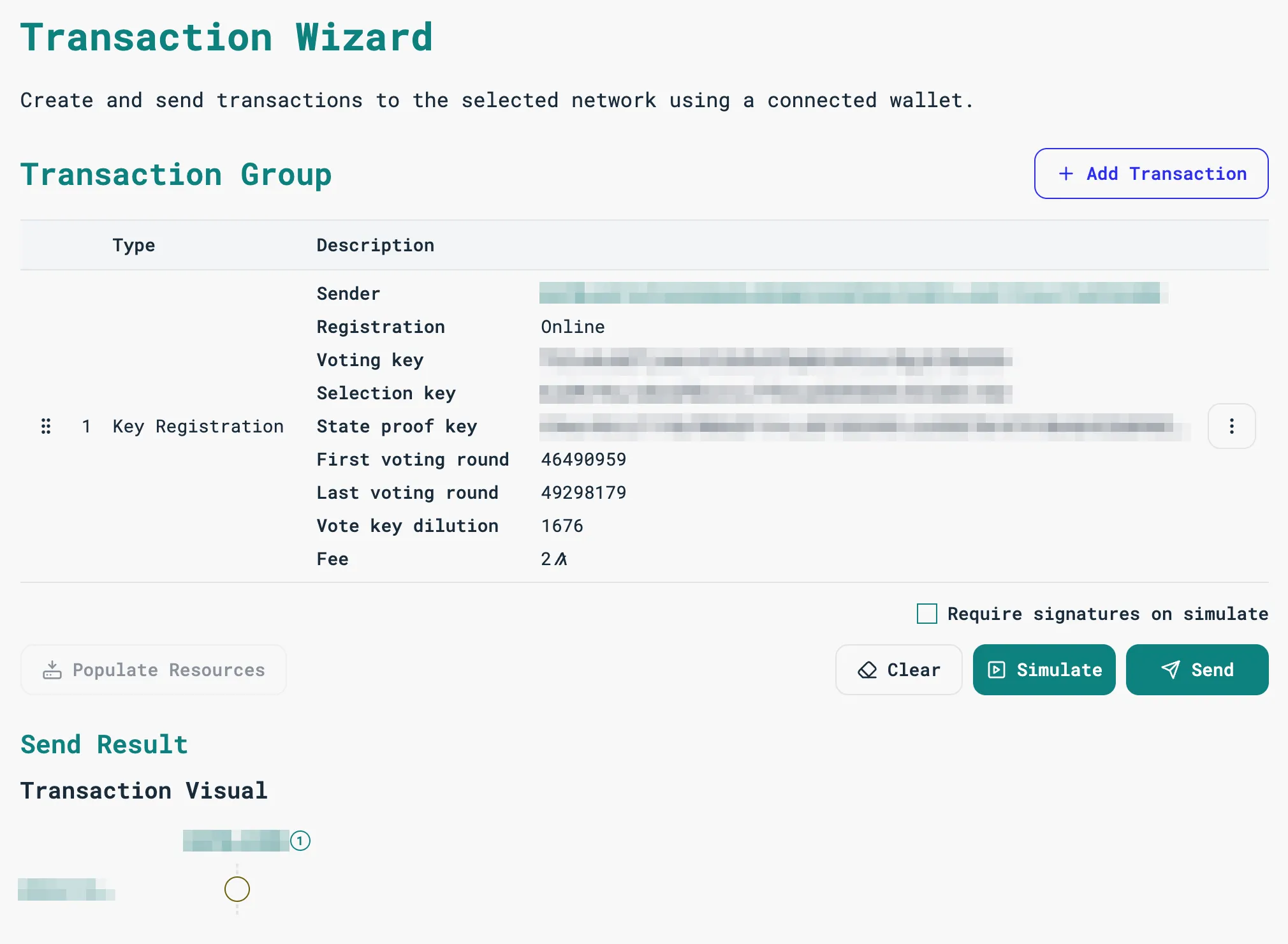
NodeKit will detect the key registration and take you back to the Key information view:
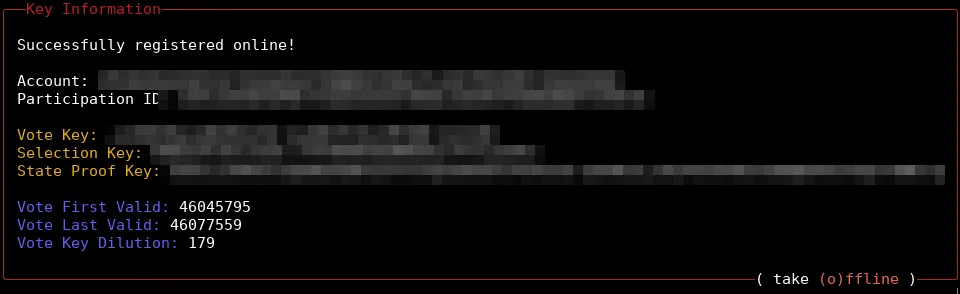
You can press esc twice to get back to the home screen.
Verify Your Node Is Participating
Section titled “Verify Your Node Is Participating”Back on the home screen, your account now has a row in the Accounts table. The status shows PARTICIPATING as soon as the transaction is confirmed, but the key only starts voting 320 rounds (about 15 minutes) later.

| Column | What to expect |
|---|---|
| Status | PARTICIPATING: your account is online and its key is valid. IDLE means it isn’t registered, or the key has expired. |
| Rewards | ELIGIBLE when you opted in and hold between 30,000 and 70,000,000 ALGO. PAUSED when you opted in but your balance is outside that range. INELIGIBLE when the account isn’t opted in to rewards, for example if you registered with -n. |
| Expires | When the participation key runs out. It shows ⚠ in the last week. Generate and register a new key before then to stay online. |
The status label at the top should be a green RUNNING with Latest Round increasing. While the node is catching up, the Expires column shows SYNCING instead of a date.
Navigating Accounts and Keys
Section titled “Navigating Accounts and Keys”If it is not running already, start nodekit with this command:
./nodekitNavigating Accounts
Section titled “Navigating Accounts”If you have participation keys for more than one account on your node, you can navigate between accounts using the up and down arrow keys.
Press enter to view the keys list of the highlighted account.
Press esc in the keys view to return to the accounts list.

Navigating Keys
Section titled “Navigating Keys”If you have more than one set of participating keys for your account, you can highlight them using the up and down arrow keys.
Press enter to view the key information.
From this screen, you can press esc to return to the keys list, d to delete an inactive key, r to register an inactive key online, or o to take the active key offline.
